Tutorial Output:
- 👩🏽💻 As an Accessing Party you’ll have a better understanding of the End User journey in the Enrollment Prompt.
As an Accessing Party, this page will explain the expected consent journey of an End-User of your App when the consent prompt is triggered.
This page helps you to understand what is happening on the End User side when the prompt is triggered.
Consent Journey #
In the enrollment tutorial, the Accessing Party requests the Resource Owner consents to access its Stellantis Account data including vehicles data linked to the account.
Once triggered, the prompt will perform and guide the End User in the following process:
- 👤 Sign In or create a Stellantis Account.
- 📡 Activate the required vehicle services for 3rd party App.
- 🚗 Perform the required certification process in the manufacturer App.
- 🔓 Finally, accept or deny the scope authorization request.
Once the consent has been accepted, you should also be aware that:
- 🚪 You should provide a logout feature in your App.
- ❌ The User is able to revoke access to your App at any time.

Note: during this process, the end user might need to quit your App. In this case, the flow is lost and the Authorization Process needs to be restarted from the start.
Trigger Prompt #
First of all, the Accessing Party should trigger the consent prompt by following the instruction of the enrollment process tutorial.
The prompt is configured by the Accessing Party, it should include the list of scopes requested to the user.
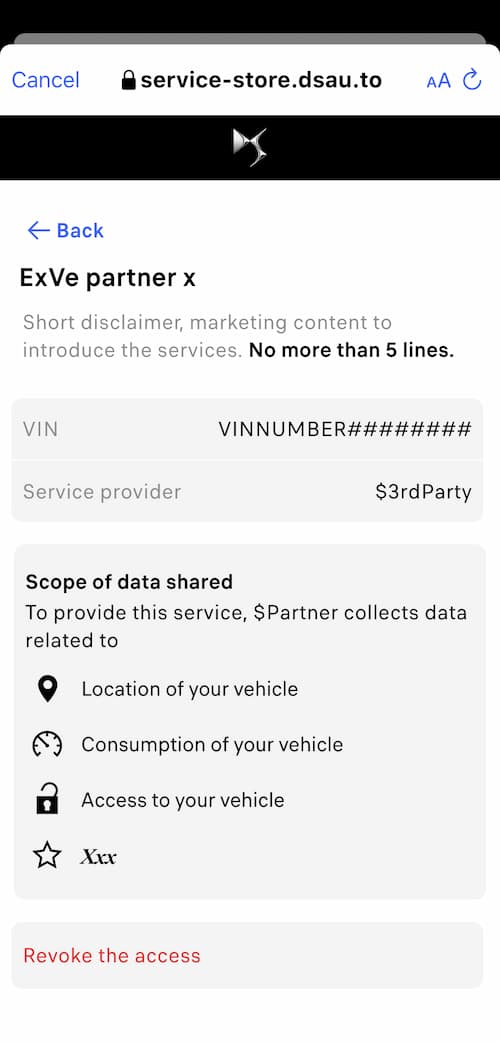
The following screenshot details the user journey in the prompt, first screen will always be signed in
Sign In #
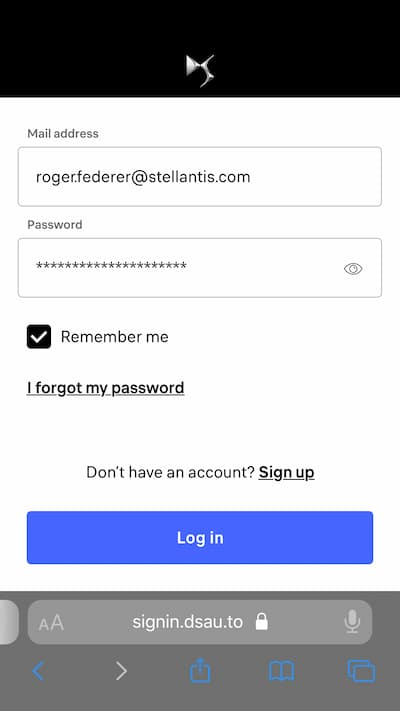
First of all the prompt will display a Sign In page, the User should login using Stellantis credentials. These credentials are never transmitted to the Accessing Party.
In case the user doesn’t have a Stellantis Account, the prompt allows creating one using the sign up button.
Account Creation #
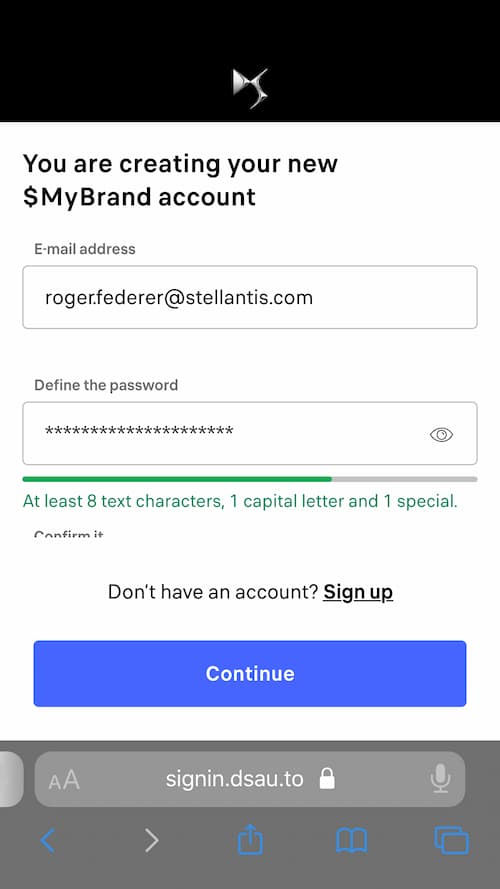
If the User doesn’t have a Stellantis account, it can be created using the Sign Up link:
- First email & password should be chosen.
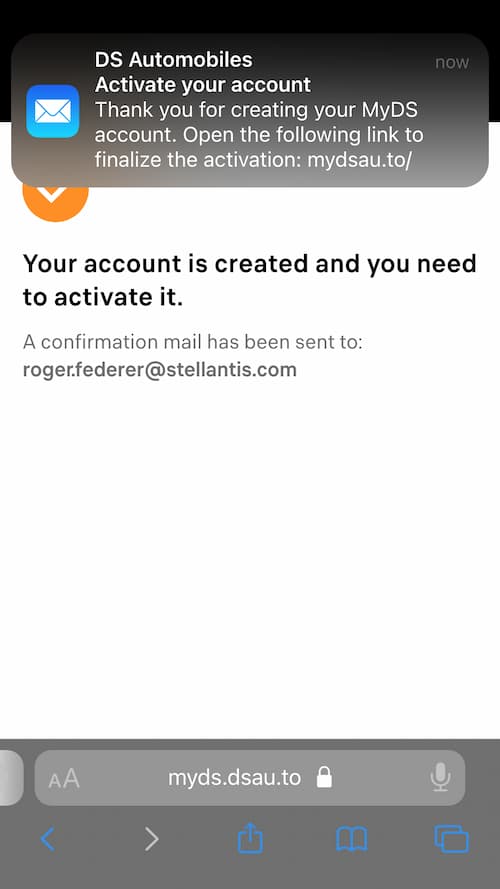
- Then, the user should verify the account with an activation email.
- Finally, when the account has been successfully activated, the prompt should be triggered again and the user will be able to sign in.
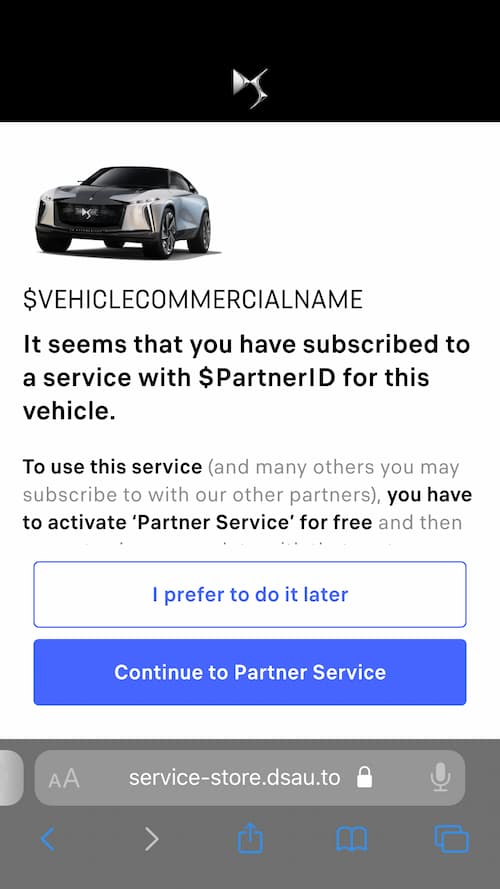
Vehicle Service Activation #
Vehicles don’t upload data to Stellantis servers if no services are activated for the vehicle. This behavior ensure that only the required data are uploaded and is required to comply with RGPD regulation.
Vehicle data are uploaded only if the End User has activated the appropriate services for the vehicle, checkout data availability & scopes for more information about data available for a vehicle.
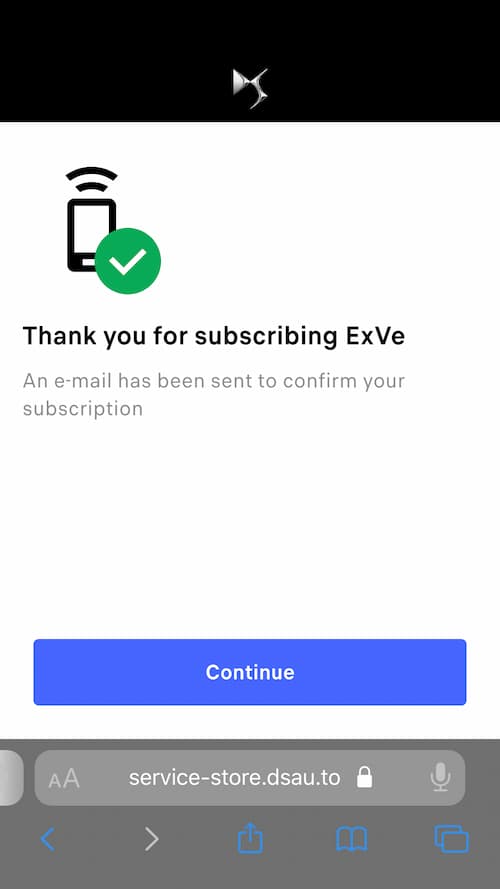
Vehicle services need to be enabled only once, it means that if the user has already activated the services on a vehicle, this step will not be asked again.
The prompt will guide the user to enable the appropriate services:
Certificiation Process #
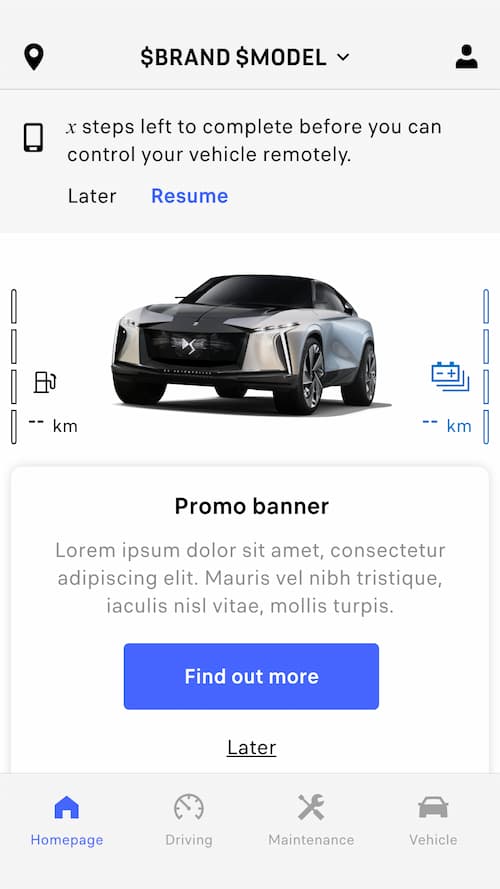
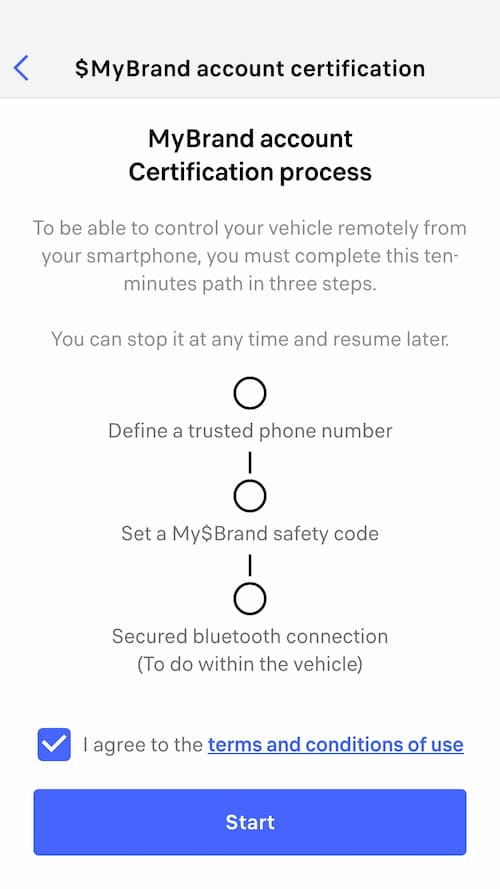
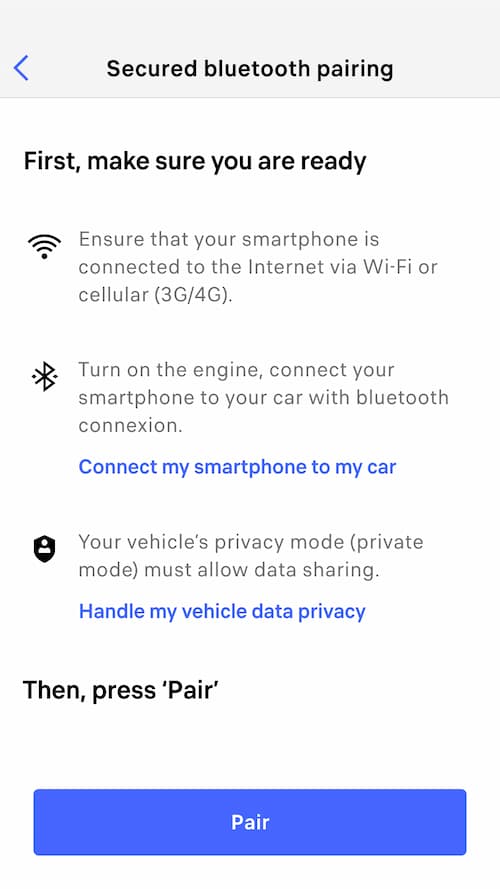
Certification Process is a security layer allowing Stellantis to make sure that the user is the owner of the vehicle. This certification only needs to be performed once and will not be asked again if the user has already certified the vehicle.
The prompt will guide the user to download the manufacturer App to perform the Certification process. These are the certification steps:
- 📞 Trusted Phone verification.
- 🔑 Define a Safety Code.
- 🔗 Perform Device pairing to Vehicle.
Consent Acceptance #
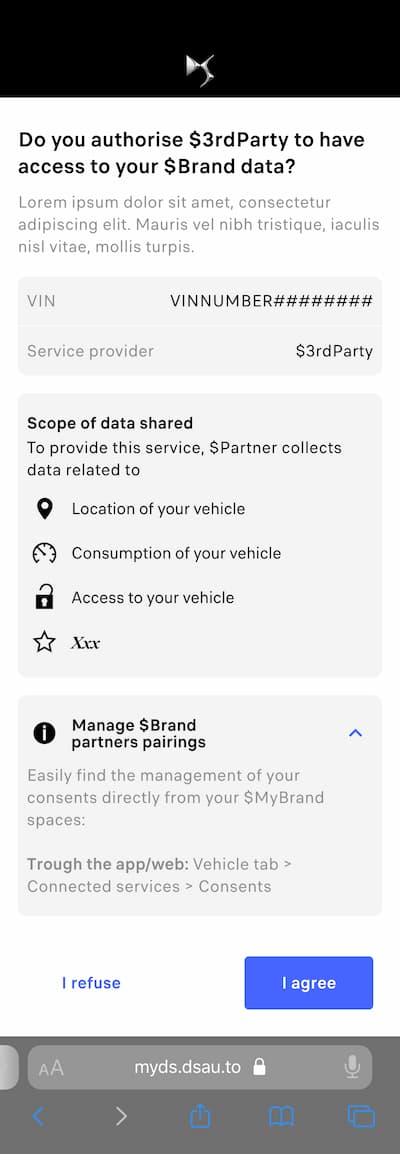
The consent screen is displayed if the previous steps have been performed, or if they have been performed for another 3rd party already:
The consent prompt contains the list of data scope the Accessing Party is requesting to the user. The user can only accept or decline the entire list of scope requested. It’s not possible to select only some scopes of the list:
Account Logout #
As an Accessing Party, you should implement a logout function in your App.
Theses features should revoke token, check out revoke tokens.
Revoke Access #
At any time, the End User can use the manufacturer application to revoke access to a third-party App.
In this case, the associated access token is revoked and your App will not be able to access the user data anymore. In this case, if the Ressource Owner wants to access the Third Party App, you need to restart the enrollment process from start.